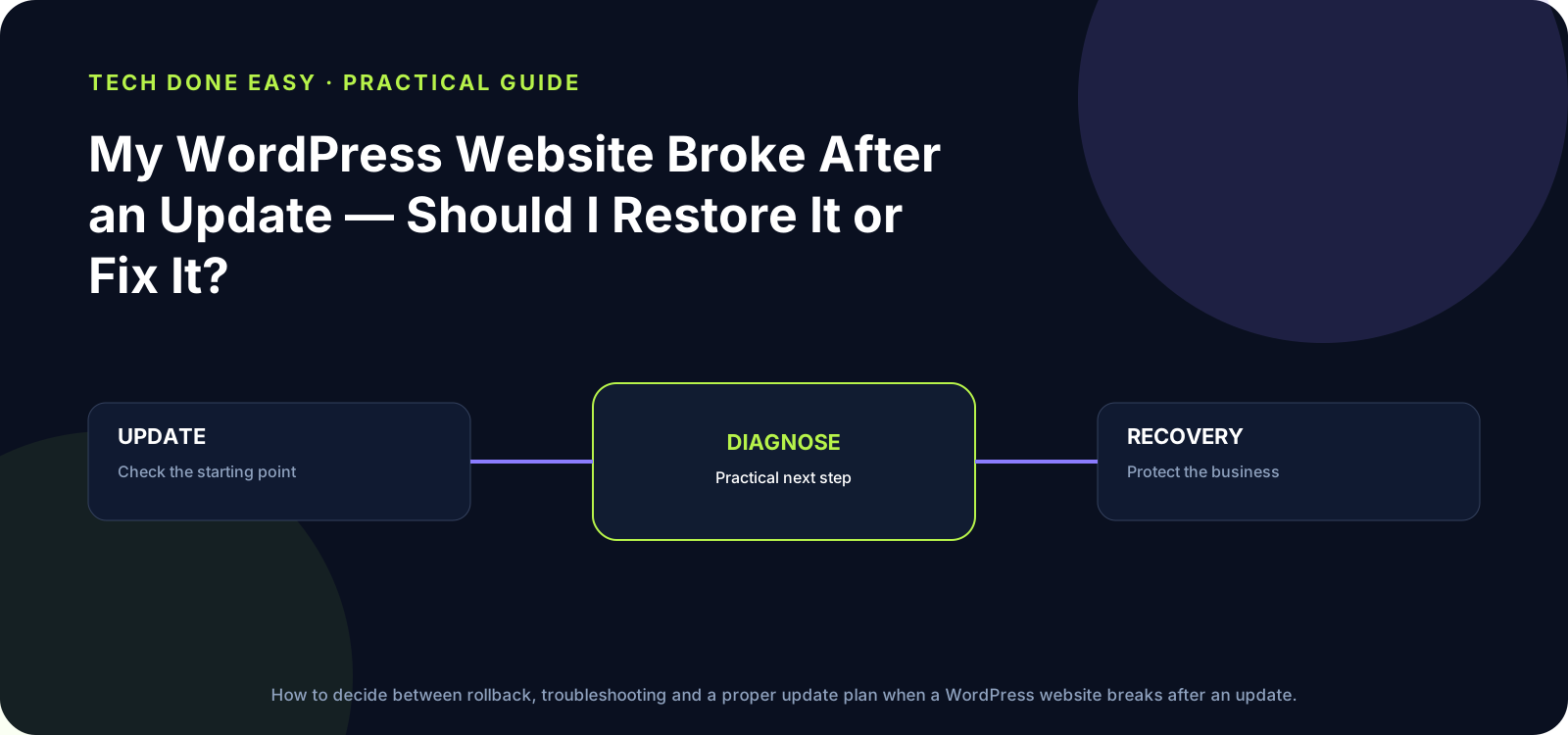
Do not immediately update everything again or rebuild the site. First identify what changed, preserve the current state and decide whether a rollback or targeted fix is safer.
A failed update is a diagnosis problem first
When WordPress breaks after an update, the temptation is to roll back immediately. Sometimes that is correct. Sometimes the update exposed an old plugin, unsupported PHP version or custom code that still needs to be fixed. Preserve evidence before changing more.
1. Identify what changed
Record the plugin, theme, WordPress core or PHP version that changed immediately before the failure. If several updates ran together, the exact cause may be unclear.
2. Check whether the site is completely down
A white screen, a broken admin area, a single feature failing and a database error are different symptoms. Check the public site and the WordPress admin separately.
3. Confirm a usable backup exists
Before restoring anything, know whether the backup contains both files and the database and whether it is recent enough. If the site has new orders, enquiries or other data, a rollback can remove information created after the backup.
4. Fix or roll back deliberately
A rollback can restore service quickly, but it may reintroduce a security or compatibility problem. A targeted fix may be better when the failing component is understood. Test the solution before applying it to production when possible.
5. Prevent the next failure
Use staging where practical, keep backups, record the PHP version and plugin/theme dependencies, and avoid updating a large group of components without a recovery point.
When a rebuild is actually justified
One failed update does not prove that the whole website needs replacing. A rebuild becomes a broader business decision when the platform is repeatedly unstable, difficult to maintain or preventing necessary changes.